

Changing clothes in a photo is the edit that replaces, recolours or adds a garment on a person or a mannequin after the picture has been taken, and there are two ways to do it: a free AI clothes changer that generates the new garment from a prompt or a reference image, or a manual Photoshop workflow in which an editor selects the garment, masks the edges and rebuilds colour, texture and shadow by hand.
A free AI clothes changer is the faster route for a personal or social photo. Professional editing is the route for a product listing or an advertisement, because Amazon, Google Merchant Center and the brands that have published their own AI workflows all require a real garment, a real photograph or a human review step.
This guide lists what eight AI clothes changer and virtual try-on tools state on their own pages about free use, login, resolution and price, sets out where generative clothes-changing fails according to the vendors and platforms themselves, walks through the Photoshop workflow step by step, and ends with a decision table and Graphic Experts India’s prices.
All sources were read on 21 October 2026. The choice between AI models, ghost mannequins and real models for the base photograph is covered in the parent guide, AI Models vs Ghost Mannequin vs Real Models.
What Is Changing Clothes in a Photo at a Glance?
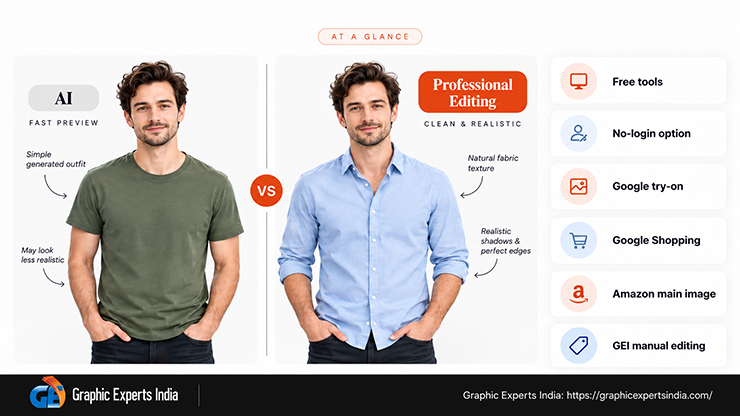
Changing clothes in a photo at a glance is a choice between a generative tool, which is free or low-cost and fast but unverifiable, and a manual edit, which costs from $0.39 to $1.49 per image at Graphic Experts India and is accepted by every selling platform.
| Question | Short answer | Source |
|---|---|---|
| Is there a free AI clothes changer? | Yes. Fotor, OpenArt, Pixelcut, Pixnova and Canva each state a free tier or free credits on their own pages; none states an unlimited free paid-quality output except Pixnova | Vendor pages, read 21 October 2026 |
| Is there an AI clothes changer online free without login? | Pixnova’s page title states “No Sign-up & 100% Free”; no other vendor page fetched states that login is not required | pixnova.ai, read 21 October 2026 |
| What does Google’s own virtual try-on need as input? | “one garment on one front-facing model or mannequin in a simple pose, or laying flat on a surface”, at least 512 × 512 pixels | Google Merchant Center Help, answer 14096369 |
| Can an AI-changed garment image be a Google Shopping main image? | Only with AI metadata intact: “All images created using generative AI must contain meta data indicating that the image was AI-generated” | Google Merchant Center Help, answer 6324350 |
| Can it be an Amazon main image? | Amazon requires adult apparel on-model on pure white, prohibits mannequins in main images, and its shoot guidance says “Avoid heavily retouched images and filters.” | Amazon Clothing & Accessories imaging guidelines, Spring 2021 |
| What does the manual edit cost? | Clipping path from $0.39, image masking from $1.49, image manipulation from $1.00, colour correction from $0.99, 24-hour average turnaround | Graphic Experts India |
What Is an AI Clothes Changer and How Does It Change Clothes in a Photo?
An AI clothes changer is a generative image model, served through a website or an app, that takes a photo of a person and either a text prompt or a picture of a garment, and returns a new image in which the person wears the described or pictured garment.
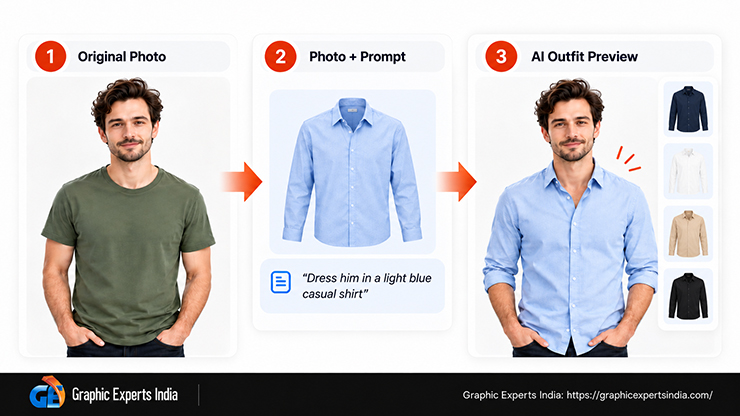
Google describes the capability behind its own try-on feature in these terms: the model “understands the human body and nuances of clothing”, including “like how different materials fold, stretch and drape on different bodies” (Google, The Keyword, 20 May 2025). Four tool classes sit under the one search term, and they behave differently.
| Tool class | What the user supplies | What comes back | Examples among the pages fetched |
|---|---|---|---|
| Prompt-based inpainting | A photo and a brushed or auto-selected area plus a text description | A generated garment painted into the selected area | Canva Magic Edit; OpenArt |
| Garment-reference virtual try-on | A photo of a person and a photo of a garment | The pictured garment fitted to the person | Kolors Virtual Try-On; Fotor; Pixnova; Google’s Search try-on |
| On-model generation for catalogues | A flat-lay, ghost-mannequin or on-model product photo | The real garment shown on an AI-generated model | Botika; Pixelcut Virtual Try-On; ZMO.AI |
| Colour-only recolour | A photo and a target colour | The same garment in a new colour, geometry unchanged | Fotor AI Clothes Color Changer; Pixelcut Image Color Changer |
The distinction matters for a clothing brand because the first two classes generate the garment and the third keeps the brand’s real garment and generates the person. Only the fourth class leaves both the garment and the person untouched.
An AI photo clothes changer in the first two classes is therefore a styling tool, and an AI clothes change app in the third class is a catalogue tool. The sections below treat them separately.
Which Free AI Clothes Changers Exist and What Do Their Own Pages State?
Eight AI clothes changer and virtual try-on tools published enough on their own pages to be listed, and the table below records only what each page states, as read on 21 October 2026. It is not a ranking and no tool was tested for this guide. A blank cell means the vendor’s page does not state the value, which is itself the most useful finding for a buyer comparing “free” claims.
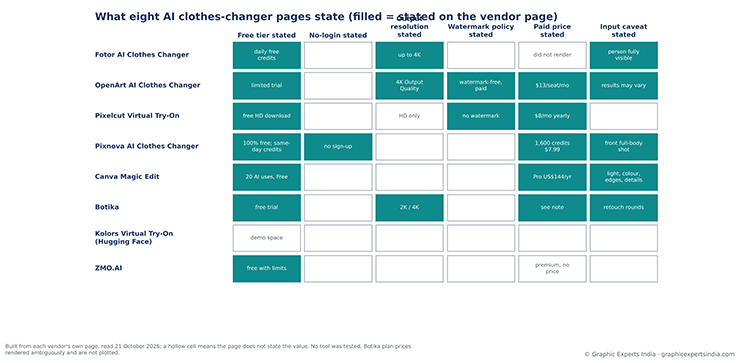
Figure 1. What each vendor states on its own page about free use, login, output resolution, price and known limits, read 21 October 2026. A blank cell means the page does not say.
| Tool and page | What the page says it does | Free tier as stated | Login as stated | Resolution and watermark as stated | Paid price as stated (read 21 October 2026) | Caveats the vendor states |
|---|---|---|---|---|---|---|
| Fotor AI Clothes Changer (fotor.com) | “swap outfits in photos by uploading clothing images, writing prompts, or choosing preset styles” | “Fotor offers daily tasks to get free credits”; pricing page lists a Basic plan “Free forever” with “Limited Free credits” | Not stated | “download your edited photo in up to 4K quality”; watermark not stated on this page | Pro, Pro+ and Max plans listed; prices did not render on the pricing page | “upload a clear photo with the person fully visible and good lighting” |
| OpenArt AI Clothes Changer (openart.ai) | “Change outfits in any photo instantly with AI.” | “OpenArt offers a free trial with limited credits, allowing you to test outfit changes and explore different styles before upgrading.” | Not stated | “4K Output Quality” section on the feature page; paid plans “Watermark-free” | Starter “$13/Seat/mo” (shown against a struck-through $14) with “4,000 credits / month”; billing period toggle did not render | “AI works best with clear images where the subject and clothing are visible.”; “Results may vary depending on lighting, resolution, and complexity.” |
| Pixelcut Virtual Try-On (pixelcut.ai) | “Showcase your clothes on AI-generated models with Pixelcut’s Virtual Try-On tool.” | “Free HD Download”; pricing page Free plan “$0” with “Free export without watermark” | Not stated | “No watermark”; input “Up to 50MB and 6000 × 6000px”; output pixel size not stated | Pro “$8” per month billed yearly (shown against $10), “600 AI Credits Monthly” | None stated; FAQ on garment suitability has no answer in the page text |
| Pixnova AI Clothes Changer (pixnova.ai) | “Instantly change the clothing in any photo with our AI clothes changer!” | Page title “No Sign-up & 100% Free”; home page: “All AI Tools in our platform is free and no usage limit.”; pricing FAQ: free credits “can only be used on the same day you claim and the free credits do not accumulate.” | Home page: “you don’t even need to log in.” | Not stated | Credit packs, “Pay once”: 1,600 credits $7.99 shown beside $9.99 (the page’s own per-credit label matches $9.99) with “Max 160 AI image editor tasks”; up to 100,000 credits $194.35 | “preferably a front full-body shot”; JPG, PNG, WEBP up to 30 MB; manual mode if the clothing area is misidentified |
| Canva Magic Edit (canva.com) | “Magically transform your photos by brushing over the areas you’d like to modify and then describing what you want to add.” | Canva Free “US$0” with “Up to 20 Standard or Premium AI uses”; the clothes-change page says the feature is “inclusa in Canva Pro” | Not stated | Not stated; help page warns the brushed area may look more pixelated than the rest | Canva Pro “US$144” “/year for one person” with “10x more AI than Canva Free (Premium or Ultra AI)” | “Il risultato potrebbe presentare differenze nella luce, nei colori, nei bordi o nei dettagli dell’indumento.”; help page advises against prompts for faces or hands |
| Botika (botika.com) | “Upgrade any photo to on model or video with Botika’s fashion AI.”; “150+ AI models” | “Start with a free trial.”; trial length not stated | Not stated | Pro “2K image resolution”; Advanced “4K image resolution”; watermark not stated | “each photo costs 1 credit and each video costs 5 credits.”; plan prices rendered as Pro $46 and Advanced $40 per month billed annually against struck-through figures, see editor note | Pro “2 retouch rounds per photo”; Advanced “3 retouch rounds per photo”; “Same-day results” |
| Kolors Virtual Try-On (huggingface.co, Kwai-Kolors space) | “Upload a photo of a person and a picture of a clothing item, then press Run.” | No price or plan on the page; a public demo space | Not stated | Not stated; hardware label “Running on CPU Upgrade” | None | None stated |
| ZMO.AI (zmo.ai) | “Showcase Clothing on Models In Minutes” | “Yes, you can use the AI Art Generator free of charge with certain limits.” | Not stated | Not stated | “the paid premium version” is mentioned without a price | “Due to the nature of the product, there is no refund.” |
Three facts follow from the table. First, “free” has five different meanings across the eight pages: daily task credits (Fotor), a limited trial (OpenArt), a free export tier (Pixelcut), same-day free credits that do not accumulate (Pixnova) and a capped number of AI uses (Canva).
Second, only Pixnova’s pages address the “without login” query, and its home page and pricing page describe the free allowance differently, so a reader should treat the “no usage limit” sentence and the “same day” sentence together.
Third, only Fotor (“up to 4K quality”) and OpenArt (“4K Output Quality”) state an output resolution, and neither ties it to the free tier, so a brand that needs the 1,600-pixel height Amazon requires or the 1500 × 1500 pixels Google recommends cannot confirm compliance from the vendor’s page.
The cheapest stated unit price is Pixnova’s: $7.99 ÷ 160 image-editor tasks = about $0.05 per task (about $0.06 at the $9.99 figure also shown on the page), against $1.00 per image for manual image manipulation at Graphic Experts India, which is the price difference a buyer is paying for the human workflow described later.
Google’s own try-on, the ninth tool in the research set, is not a changer a brand operates: “All brands with a shopping feed and high quality imagery are automatically opted into Apparel Try-On.” (Google Merchant Center Help, answer 14096369), and the shopper, not the brand, uploads the photo.
Where Does Generative Clothes-Changing Fail According to Vendors, Brands and Platforms?
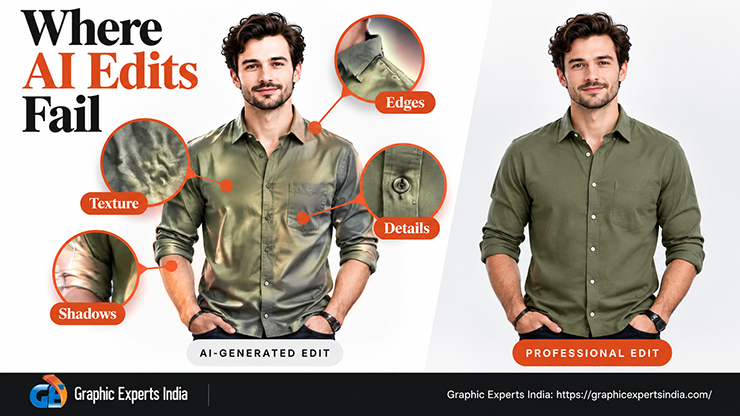
Generative clothes-changing fails at the garment’s edges, at its colour and texture, at the input pose, and at the platform gate, and each failure is documented by a vendor, a brand or a platform in its own words rather than by a test run for this guide.
| Failure point | Who documents it | What the source states |
|---|---|---|
| Edges, light and garment detail | Canva, clothes-change page | “Il risultato potrebbe presentare differenze nella luce, nei colori, nei bordi o nei dettagli dell’indumento.” (the result may differ in light, colours, edges or garment details) |
| Lighting, resolution and complexity | OpenArt | “Results may vary depending on lighting, resolution, and complexity.” |
| Brushed area quality | Canva Help Center, Using Magic Edit | The brushed area may look more pixelated than the rest of the image; output can be empty or different from the request; avoid prompts for faces or hands |
| Input pose | Pixnova; Fotor; Google | Pixnova: “preferably a front full-body shot”; Fotor: “the person fully visible and good lighting”; Google’s try-on input rule: “one garment on one front-facing model or mannequin in a simple pose, or laying flat on a surface” |
| Garment state | Google Merchant Center, try-on requirements | “Zippers should be closed”; “Tops should be untucked”; whole garment visible |
| Human review after generation | Mango; Zalando; Levi’s | Mango: “The creation process began with shooting with real photos of each garment in the collection.” and afterwards the art team “selected, retouched, edited and mastered the images in the photography studio” (10 July 2024). Zalando: “All AI-supported content is carefully reviewed to ensure quality and transparency.” (7 May 2025). Levi’s: “we are not scaling back our plans for live photo shoots” (28 March 2023) |
| Platform metadata | Google Merchant Center, image_link | “All images created using generative AI must contain meta data indicating that the image was AI-generated”; “Don’t remove embedded metadata tags such as the IPTC DigitalSourceType property” |
| Platform imaging guidance | Amazon apparel imaging guidelines | “Avoid heavily retouched images and filters.”; “All adult apparel should be imaged on-model.”; “MAIN images must have a pure white background (RGB Value 255, HEX Value #FFFFFF).”; “The product must fill at least 85% of the image area.” |
The three brand statements describe the same pipeline. Mango photographed every real garment first and finished the output in a photography studio.
Zalando, which reported “approximately 70% of editorial campaign assets being AI-generated in Q4 2024”, generates from digital twins of real models and adds a review step, and states that “Human involvement remains a key part of the process, from model scans to creative direction.”
Levi’s framed its test as “using AI-generated models to supplement human models”. In none of the three cases does a generative model invent the garment itself, and in all three a human edits after generation.
Google’s metadata rule means that an AI-changed outfit used as a Shopping image must keep its IPTC DigitalSourceType tag, which many free download paths strip, and Amazon’s apparel shoot guidance says “Avoid heavily retouched images and filters.”, so a generated on-model image that reads as retouched works against the guideline even where no main-image rule names it.
The full list of marketplace and storefront image specifications is in the guide to fashion ecommerce platforms, which treats Amazon, Etsy, eBay, Walmart, Shopify and Google side by side.
How Do You Change Clothes in a Photo in Photoshop Step by Step?
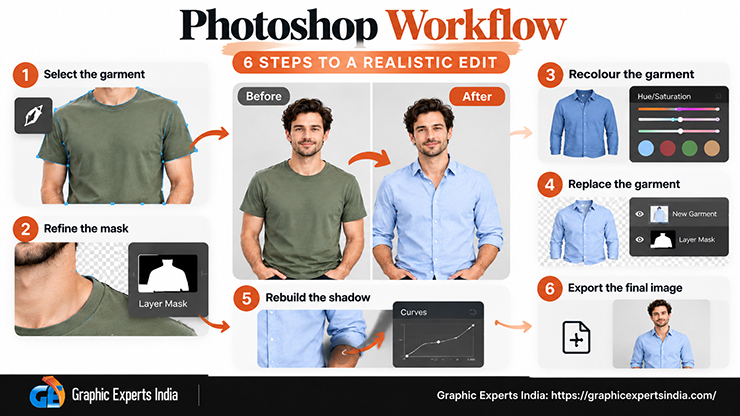
To change clothes in a photo in Photoshop, select the garment with the Pen tool, mask the hair and soft edges, recolour or replace the garment on a masked adjustment layer or a new layer, keep the original luminance so texture and drape survive, rebuild the shadow, and export to the platform specification, in that order.
The sequence below is the manual process; the Adobe Help Center pages quoted describe the tools, and the garment-specific practice is Graphic Experts India’s.
Step 1: How Do You Select the Garment with the Pen Tool?
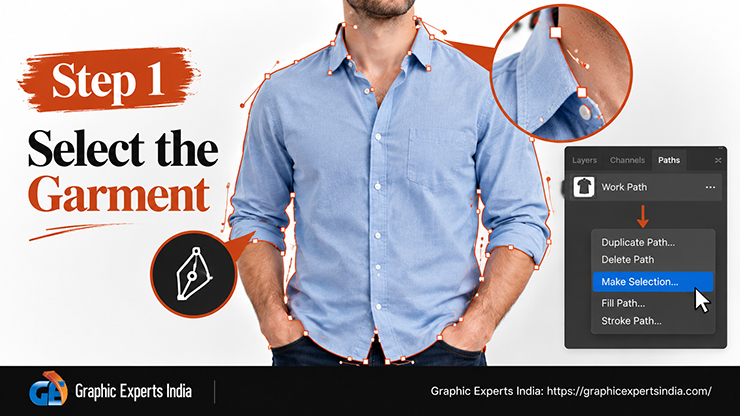
To select the garment, draw a closed path around it with the Pen tool, then convert the path to a selection. Adobe describes the tool in one sentence: “The Pen tool allows you to draw smooth-edged paths with anchor points and handles.” (Adobe Help Center, Pen tool, 29 April 2024).
The path follows the garment’s hard edges only: hems, seams, collar, cuffs and the outline against the background or skin. Hair, fur trims and sheer fabric are left for Step 2. Once the path is closed, Adobe’s instruction is to “Choose Make Selection from the Paths panel menu.” with the Anti-aliased option, which “Creates a finer transition between the pixels in the selection and the surrounding pixels.” (Adobe Help Center, Convert paths to selection borders, 24 May 2023).
A hand-drawn path is what the trade calls a clipping path, and Graphic Experts India draws every path with the pen tool rather than an automatic selection, because a generated selection drifts on low-contrast edges such as a white shirt on a white background.
Step 2: How Do You Mask Hair and Soft Edges?
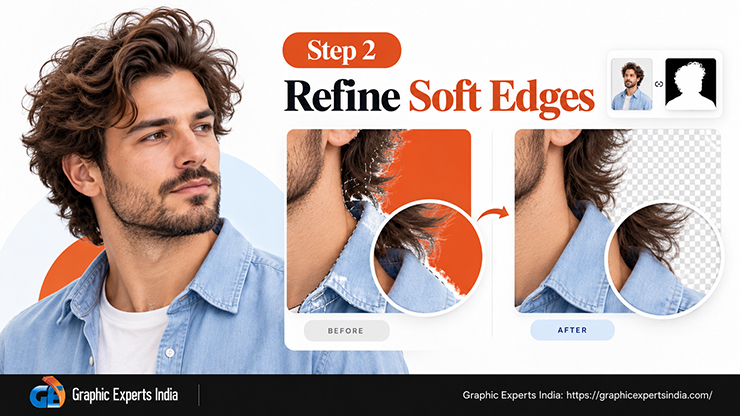
To mask hair and soft edges, load the path selection, open Select and Mask, and refine the edge where hair, lace, mesh or a knit’s fuzz crosses the garment boundary. Adobe’s hair-selection page gives the order: “Use the Lasso or Quick Selection tool to make the initial selection.” then “Choose the Refine Edge Brush, and then brush along the edges of the subject.” and output to a layer mask, where “The white areas of the mask indicate the visible areas of the layer.” (Adobe, Select hair, 11 June 2026).
The mask is the layer that makes the edit reversible: “The black part of the gradient hides content on the masked layer. The white part of the gradient shows content on the masked layer.” (Adobe, Layer mask tutorial).
On a garment photo the areas that need this treatment are the neckline where hair falls on a collar, the shoulder line of a fur or faux-fur trim, any sheer or lace panel, and a mohair or bouclé knit’s halo. Graphic Experts India’s image masking page describes the same boundary: “Subjects with hair strands, fur, smoke, lace, mesh, or translucent fabric require masking tools.”
Step 3: How Do You Change the Color of Clothes on a Mask?
To change the colour of clothes, apply the new colour through an adjustment layer or a fill layer that is clipped to the garment mask, so the change touches only the garment and can be undone. Three methods are in use, and Adobe documents all three.
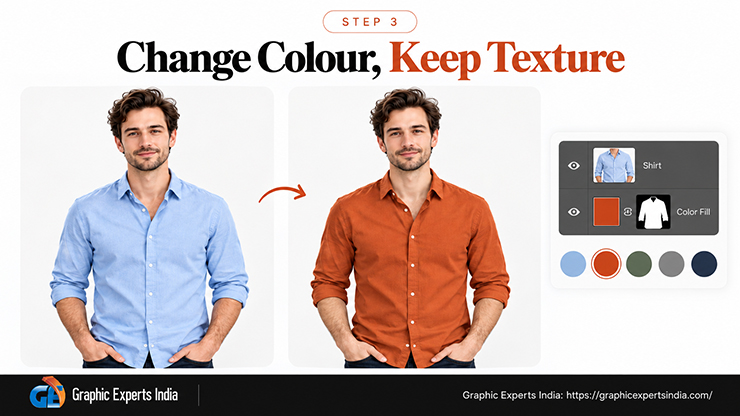
- Hue/Saturation adjustment layer. The garment’s hue is shifted while its lightness is kept. Adobe’s recolouring tutorial shows the limit of this method on a sofa: raising Lightness for a brighter colour means, in the tutorial’s words, “I’ll wash out the shadows of the couch making it look very flat.”, and its next sentence applies to fabric as much as upholstery: “You need the different levels of brightness, the highlights and shadows that give the couch its shape and texture.” (Adobe, Change the color of an object, 22 July 2026).
- Solid Color fill in Color blending mode plus Levels. This is the method Adobe’s tutorial recommends instead: a Solid Color fill layer set to the Color blending mode supplies hue and saturation, and a separate Levels adjustment layer sets brightness, so shadows and highlights are controlled independently of the colour.
- Selective Color adjustment layer. For a small shift toward a brand reference, for example a navy that needs less cyan, Selective Color changes the process-colour mix inside one colour family: “You can modify the amount of a process color in any primary color selectively.” The Relative setting “Changes the existing amount of cyan, magenta, yellow, or black by its percentage of the total.” and the Absolute setting “Adjusts the color in absolute values.” (Adobe Help Center, Selective Color, 24 May 2023). Adobe’s page also warns that applying the adjustment through the Image menu rather than as an adjustment layer edits the pixels directly and discards image information.
The target colour is never chosen by eye. A colourway edit is matched to a physical sample, a brand colour value or a Pantone reference, which is how Graphic Experts India’s colour correction page defines the job: colour matching targets “a real-life sample, a brand color reference, or a Pantone specification.”
Step 4: How Do You Replace a Garment and Keep Texture and Drape?
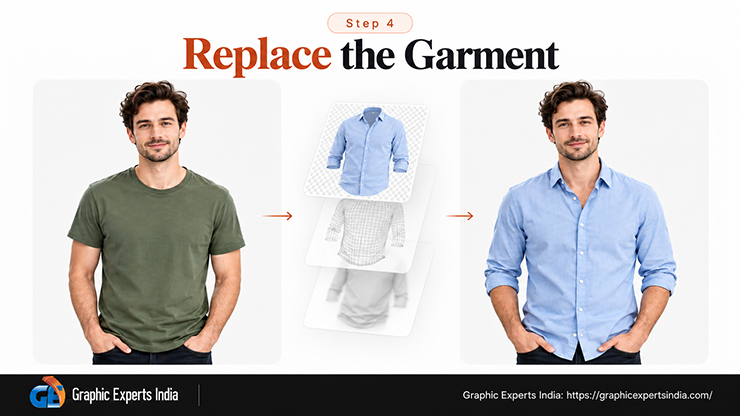
To replace a garment rather than recolour it, the new garment is photographed separately on the same form or model, cut out with its own clipping path, placed on a new layer above the original, and warped to the body’s pose, after which the original garment’s luminance is blended back in so folds, creases and fabric grain return.
The practical rule is that the pixels that carry texture and drape are luminance pixels, which is why the Color blending mode in Step 3 preserves them, and why a garment replacement keeps the original garment’s shadow layer underneath the new one. Where the two garments have different silhouettes, for example a fitted tee replaced by a boxy tee, the editor also repaints the background or skin that the new silhouette no longer covers.
This is the part of the job that a generative model performs with one pass and that a manual edit performs in layers, and it is the step where the Canva caveat about “bordi” and “dettagli dell’indumento” (edges and garment details) describes the typical generative error.
Step 5: How Do You Rebuild the Shadow?
To rebuild the shadow, duplicate the garment’s mask, fill it black on a layer below the garment, blur it, lower its opacity, and offset it in the direction of the original light, then paint the contact shadow darker where the garment meets the body or the floor.
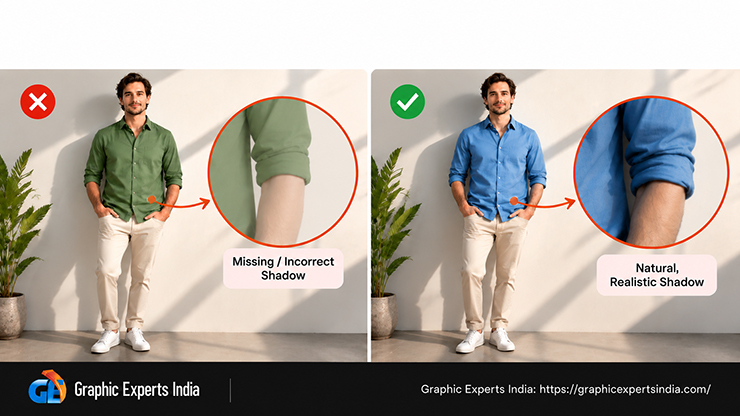
The recoloured or replaced garment inherits its cast shadow from the original photograph only when the silhouette is unchanged; any change of hem length, sleeve length or volume leaves a shadow that no longer matches, which is the error a shopper reads as “fake” without being able to name it. Graphic Experts India lists shadow making from $0.40 per image as a separate line for this reason.
Step 6: How Do You Export the Edited Photo for Each Platform?
To export, flatten a copy of the layered file to the platform’s specification and keep the layered PSD as the master. The two specifications that most often bind a clothing brand are Amazon’s, “At least 1,600 pixels in height” on a pure white background with the product filling at least 85% of the frame, and Google Merchant Center’s, which states “we recommend that you provide images 1500×1500 pixels or above” and sets a 500 × 500 pixel minimum “for all products beginning January 31, 2027”.
A manually edited photograph carries no generative-AI metadata requirement, because no part of it was generated; an image that passed through a generative step must keep the IPTC DigitalSourceType tag on export. The layered master is also what makes the next colourway cheap: the mask and the shadow layer are reused and only the fill colour changes.
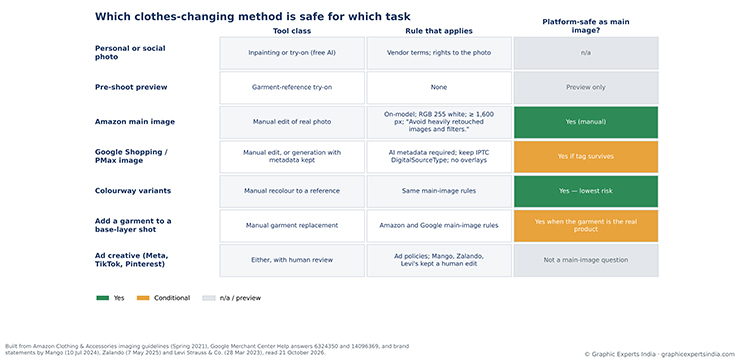
Figure 2. Which tool class fits which task, and whether the output is accepted as a main image on Amazon and Google Shopping, built from Amazon’s Spring 2021 apparel guidelines and Google Merchant Center Help pages read 21 October 2026.
When Should You Use a Free AI Clothes Changer and When Professional Editing?
A free AI clothes changer is the right tool when the output is for a person’s own use or a social post and no platform rule applies, and professional editing is the right tool when the image will sell a real garment, because the platform and the brand both need the garment in the image to be the garment in the box. The matrix below ties each task to a tool class and to the published rule that governs it.
| Task | Tool class that fits | Platform rule that applies | Platform-safe as a main image? |
|---|---|---|---|
| Change outfit in a personal photo or social post | Prompt-based inpainting or garment-reference try-on (Canva, OpenArt, Fotor, Pixnova, Kolors) | None, beyond the vendor’s own terms and the rights to the source photo | Not applicable; no listing rule |
| Preview how a product might look on a body before a shoot | Garment-reference try-on | None | Not for sale images; a preview only |
| Show a real garment on a person for an Amazon listing | Manual edit of a real on-model photograph, or a real shoot | “All adult apparel should be imaged on-model.”; pure white RGB 255; “Avoid heavily retouched images and filters.” | Yes for a photographed and manually edited image; a generated on-model image risks the retouching rule and cannot be verified from vendor pages |
| Show a garment in Google Shopping or Performance Max | Manual edit, or on-model generation with metadata intact | AI images must carry metadata; “Don’t remove embedded metadata tags such as the IPTC DigitalSourceType property”; no overlays | Yes if the IPTC tag survives; manual edits carry no such requirement |
| Produce colourway variants of one photographed garment | Colour-only recolour (manual, matched to a reference) | Same main-image rules as above; the garment geometry is unchanged | Yes; this is the lowest-risk edit class |
| Add clothes to a photo of a model shot in a base layer | Manual garment replacement (Step 4) | Amazon and Google main-image rules | Yes when the added garment is the real product, photographed |
| Ad creative on Meta, TikTok or Pinterest | Either, with the brand’s own review step | Platform ad policies; the brand statements above show Mango, Zalando and Levi’s each kept a human edit | Not a main-image question; disclosure practice is the brand’s decision |
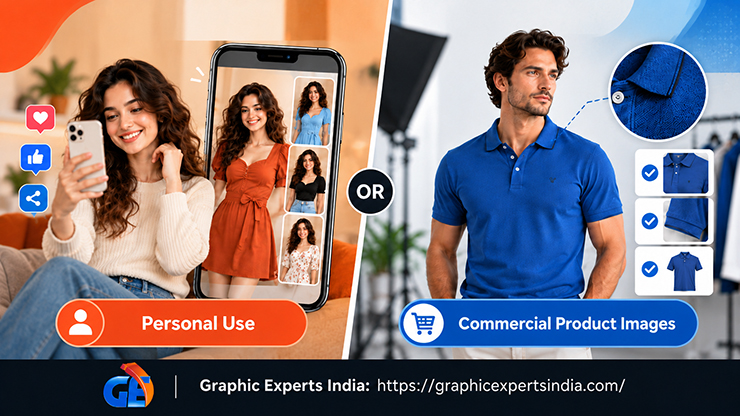
Two rows deserve a note. The ad-creative row is where the brands quoted earlier operate, and all three photographed the real garment first, so the input to any generative step in advertising is still a product photograph. How that creative is briefed, shot and disclosed is covered in the guide to making a clothing advertisement.
The colourway row is the one where a manual recolour and a free AI recolour look closest on screen, and the difference is the reference: a manual edit is matched to a Pantone or brand value, while the vendor pages fetched for this guide do not state how their recolour tools select the target colour.
What Does Professional Clothes-Changing Cost at Graphic Experts India?
Professional clothes-changing at Graphic Experts India is priced per image by the edit class: clipping path from $0.39, image masking from $1.49, image manipulation from $1.00, e-commerce retouching from $0.99 and colour correction from $0.99, each with a 24-hour average turnaround and a three-step quality check.
The classes map onto the six steps above. A garment that needs only a hard-edge selection is a clipping path job. Hair, fur, lace or mesh at the boundary moves it to image masking. A colourway from one reference photo is colour correction, which the service page defines as a process that “creates multiple color variant images of a product from a single reference photograph.”
Replacing or adding a garment, repainting background and rebuilding shadow is image manipulation, which the service page defines as “the process of altering images digitally to achieve a desired visual effect.” and states is “performed manually in Adobe Photoshop with precision, care, and creative sensibility.”
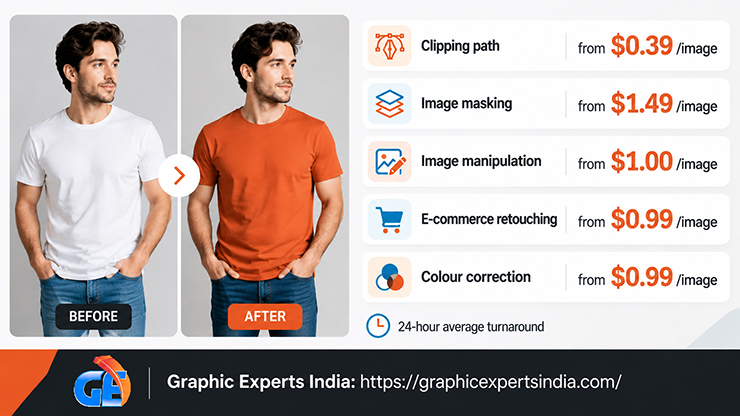
The layered PSD is delivered with the flattened exports, so a second colourway or a second platform size is a re-export rather than a new job. A free trial on two to five sample images is available with no credit card required, returned within 24 hours.
What Do People Ask Most Often About Changing Clothes in a Photo?
Pixnova is the only vendor among the eight pages fetched whose page title states “No Sign-up & 100% Free”, and its home page adds “you don’t even need to log in.” Its pricing FAQ states that free credits “can only be used on the same day you claim and the free credits do not accumulate.” Fotor, OpenArt, Pixelcut and Canva state free credits or a free tier but do not state whether login is required.
Only within platform rules. Google Merchant Center requires that “All images created using generative AI must contain meta data indicating that the image was AI-generated” and that the IPTC DigitalSourceType tag is not removed. Amazon’s apparel guidelines say “Avoid heavily retouched images and filters.” and require adult apparel on-model on pure white; the retouching line is shoot guidance rather than a main-image rule, but a generated image that reads as retouched is a risk in the main slot.
Keep the colour and the brightness on separate layers. Adobe’s recolouring tutorial uses a Solid Color fill layer in the Color blending mode for hue and a Levels adjustment layer for brightness, because “You need the different levels of brightness, the highlights and shadows that give the couch its shape and texture.” Clip both layers to a garment mask so the change stops at the hem.
Photograph the garment on the same form or a model in the same pose, cut it out with a hand-drawn clipping path, place it on a layer above the person, warp it to the pose, blend the original luminance back for drape, repaint any background the new silhouette exposes, and rebuild the shadow below it. Graphic Experts India prices this as image manipulation from $1.00 per image.
The vendors agree on the input. Pixnova asks for “preferably a front full-body shot”, Fotor for “the person fully visible and good lighting”, and OpenArt states that “AI works best with clear images where the subject and clothing are visible.” Google’s try-on requirement is the strictest version: “one garment on one front-facing model or mannequin in a simple pose, or laying flat on a surface”, at 512 × 512 pixels or more.
Where Can a Clothing Brand Get Clothes Changed in a Photo Professionally?
A clothing brand can send its on-model, mannequin or flat-lay photographs to Graphic Experts India and receive the garment recoloured, replaced or added by hand in Photoshop, with the layered file and the platform exports returned together.
Graphic Experts India lists clipping path from $0.39 per image, image masking from $1.49 per image, image manipulation from $1.00 per image, e-commerce retouching from $0.99 per image and colour correction from $0.99 per image, each with a 24-hour average turnaround and a three-step quality check.
The company has served e-commerce retailers, photographers and apparel brands since 2009. A free trial on sample images, with no credit card required, is available through the photo retouching service page.

Salim Ahmed is the CEO of Graphic Experts India, with over 25 years of expertise in photo editing, clipping path, image retouching, and eCommerce image editing services.